Posted on 5 Comments

Building an iPad Version of Your WordPress Website

Do you have an iPad? If so, you’ve probably tried one of my favorite apps — Flipboard. Flipboard gives your iPad a magazine-like interface to Twitter, Facebook, Google Reader and other news streams.

Whether you have an iPad or not, now you can give your WordPress-powered website the same cool Flipboard experience on the iPad. It’s super easy and with the new Onswipe plug-in, it’s free. Here’s how it’s done.

If your site is hosted on WordPress.com, the plugin is automatically available for you. If your WordPress site is self-hosted (i.e. WordPress.org) then you’ll first need to install the free Onswipe plugin.

Onswipe gives your website a magazine-like feel

Installing and Configuring Onswipe

  1. From the admin console, go to Plugins > Add New and search for Onswipe.
  2. Install and activate the plugin.
  3. Set the permissions of the thumbs cache folder (WP-Contents/uploads/thumbs-cache) to 777.  This allows Onswipe to cache generated thumbnails to make the iPad version of the site load faster for subsequent requests.

Once you’ve installed Onswipe, you can find the configuration options in the Appearance panel.

The Cover logo does double-duty as the home screen icon and should be 200×200 pixels transparent PNG.

The launch screen image only shows up if someone adds a link to your site on their iPad home screen, then launches the site from their home screen. But it’s a nice touch. Make it exactly 768×1004 pixels.

You can also tweak the display font and skin color. Note that while these fonts are available on the iPad, they may or not be available on your computer. If the fonts are installed on your computer, you’ll see the sample text reflect the correct font selection.

Onswipe will automatically detect iPad browsers and display the new swipe-able interface. You can toggle this on and off as needed.

Before and After Onswipe

Here’s what Jeff Hester.net looks like on an iPad before:

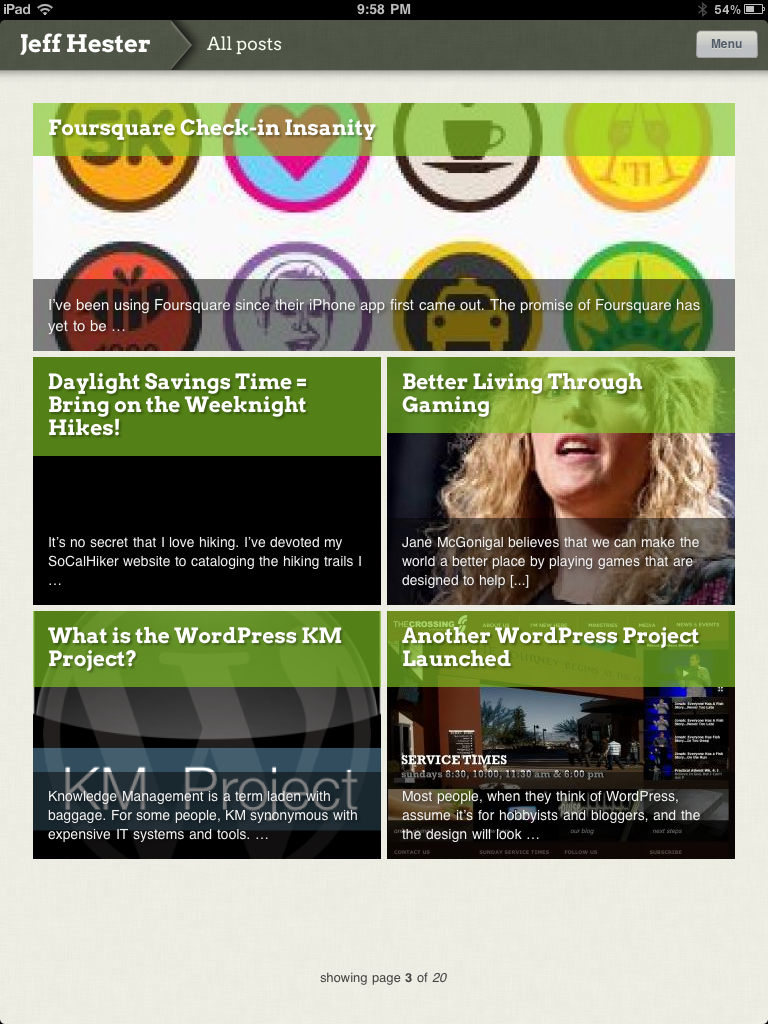
And after installing Onswipe:

A sample post viewed via Onswipe:

Onswipe Features and Gotchas

Onswipe is super easy to install and configure. Their website claims it provides “insanely easy tablet publishing” and I found that to be true. Once it’s setup, it just works. You can swipe to browse through the index, and Onswipe will detect the orientation of your iPad and automatically reformat things (portrait or landscape).

But there are a few caveats that might keep you from using Onswipe.

  • If you absolutely need access to widgets on the iPad, forget Onswipe. It provides a simplifed interface (much like an iPad app). Onswipe doesn’t support sidebars and widget areas.
  • Onswipe doesn’t support Facebook comments or other comment systems that don’t store comments in the WordPress database.
  • There is currently no way for the user to specify the “full” version of the website, if they so desire. It’s either on or off for everyone.
  • If you are signed into your WordPress admin console on your iPad (i.e. you checked “remember me”) the Onswipe interface won’t show until you sign out.
  • There is no way to browse tags; only categories are currently supported.

The Onswipe website considers this 1.0 release a “preview” and asks you to sign-up for email notification when they “officially” launch, but you don’t need to do that to download or use this plugin.

The Bottom Line

Is Onswipe worth trying? If you care about providing iPad users with a great experience, and your site primarily leverages posts vs. pages, you should definitely consider Onswipe. If you’re site is primarily page-driven (as many CMS-centric sites are) Onswipe is not for you.

At WordPress.com, they are already seeing about 750,000 daily page views from iPads, and that figure is growing. For that reason alone, Onswipe is worth a look.


Posted on 3 Comments

The World’s Best iPad Case, Period

Our stores are filled with mediocre products. How many things do you buy that you simple use, but don’t really love? I believe we should design, create and purchase love-worthy products. Apple has done this very well with their iPod, iPhone and iPad devices, but there are plenty of other companies doing good work. I’m going to take some time each weekend to share my favorites. Today, it’s the world’s best iPad case: the DODOcase.

An expensive device like an iPad is naked without a case. An iPad deserves something to protect it from scratches, dings and even the occasional drop. And the DODOcase (affiliate link) does this with style. It is the best case I’ve ever seen for the iPad, bar none.

I first spied the DODOcase at last year’s WordCamp LA. One of the guys sitting in a row near me had one. It caught my eye because I’m a big fan of Moleskine notebooks, and I had been lusting for an iPad since then were first announced. I finally got my iPad last fall, and shortly thereafter ordered my DODOcase.

The DODOcase is handmade in San Francisco using old school bookbinding methods. It has the look of a big Moleskine notebook (my favorite analog note taking device). The sides which cradle the iPad are cut from unfinished bamboo, which is both strong and has a nice paper-like patina. There’s even an elastic band like the Moleskine notebooks that holds the case closed.

The hand-crafted quality of the case is a double-edged sword. On the one hand, the DODOcase is a kick-ass case. On the other, I had to wait nearly four weeks for my case to arrive. Apparently there is a limit to how many of these beauties you can make when you’re doing it by hand.

As you can see from the photos, it’s a beautiful case. But it’s not without a few issues and might not be for everyone. First, it’s one of the more expensive cases out there. Second, like a notebook or a favorite book, it will show some wear over time. I’ve seen it in the corners. And of course, also like a book, it’s not water proof or even very water resistant. And finally, it doesn’t stand up like an easel as some cases do.

But it does look, feel and work amazingly well. Highly recommended.

If you’re interested, you can find out more or order your DODOcase at their website (affiliate link).

Posted on 2 Comments

Flipboard: The Number 1 Must-Have iPad App

My iPad has officially replaced my trusty Moleskine notebook. Instead of paper and pen, my iPad comes to my meetings, to Starbucks, and pretty much everywhere I go. There are a lot of wonderful apps for the iPad, and I’ll get into them in good time. But one app really stands out in it’s design, beauty and function — Flipboard.

I first read about Flipboard months before I finally plunked down the cash for an iPad, and it had already captured my attention. It’s remarkable in that Flipboard really doesn’t do anything that I couldn’t do before.

What is Flipboard?

Essentially, Flipboard is a different way of reading and consuming media that I’ve already been reading and consuming via other means. What makes Flipboard remarkable is that it does it so elegantly.

Flipboard transforms Twitter, Facebook, Flickr, Google Reader and RSS feeds into a beautiful, magazine-like interface that leverages all the good bits of the iPad. A Twitter stream is noisy and difficult to browse. The same stream through Flipboard is a pleasure. Links, photos and videos show up inline without requiring extra clicks, making browsing your streams not only a pleasure, but making it possible in a new way.

Here are a few screenshots to help tell the Flipboard story. Click any thumbnail to browser the larger images.

I still use Twitter and Facebook, but reading the same streams via Flipboard never fails to surface new and interesting conversations that I might have otherwise overlooked.

If you have an iPad, you must download and use Flipboard. Hell, it’s free.

If you don’t have an iPad, Flipboard might be reason enough to get one.