Posted on — 3 Comments

Creating a 360 Panorama with the LG 360 Camera

Testing a 360 panorama with Cardboard

I’ve long been fascinated with immersive photography such as 360°  panoramas, videos, virtual reality and photo spheres. I backed the Dot project on Kickstarter back in 2011, and they actually created a cool accessory for the iPhone 4 (at the time, the latest-and-greatest) that recorded 360° video.

Now, it’s pretty easy to create immersive photo spheres using an iPhone and the free Google Streetview app. It does a decent job with the camera in your pocket (i.e. your phone), helping you create all the images you’ll need for the app to automagically stitch together a spherical image. The resulting image can be uploaded to the Google Streetview database or shared on Facebook, which should recognize it as a photo sphere and display it accordingly. When it doesn’t work properly, you’ll end up with a funny looking distorted image like the one at the top of this post.

Enter the 360° Cameras

360° cameras used to be really expensive, but I recently picked up an LG 360 camera for $200. This camera has two 13 megapixel spherical cameras on either side, allowing you to take 180° or 360° still photos and video.

Here’s a quick-and-dirty example I shot from our apartment in Seoul. Go ahead…click on it and drag your mouse around to change the view.

The LG 360 connects with my iPhone using wifi, allowing me to preview the shot and transfer photos and videos to my phone. You can use either the Google Streetview app or LG’s 360 CAM app to record.

Sharing 360° Photos and Videos

Sharing the resulting photos and videos can be tricky. You can upload the 360° video to YouTube and it should detect the photosphere and automatically present it with user controls. If a viewer is looking at it on their phone with the YouTube app, it will utilize the gyroscope to allow you to turn left/right/up/down to “look” around the video.

Sharing on Facebook works much the same. Just upload the photo or video like you would a regular photo or video, then cross your fingers. Facebook should detect the spherical image and display it correctly. I found that it doesn’t work 100% of the time.

Displaying it on a WordPress blog is a bit trickier. For videos, the easy button is to share on YouTube, then share the URL. WordPress will automatically convert it to an embedded video with the appropriate controls. For images, the easiest solution I’ve found — and what I’m using for the example above — is the VR Views Jetpack plug-in. Upload your image to the Media Gallery and use a shortcode to insert the image where you want.

Application of 360° Imagery

I see a lot of potential for immersive photography and videography, particularly for sites where sharing the big picture is really useful. For example, I can see real value on my hiking site to show all angles of a tricky trail junction, or to give someone an inspiring view from the summit. On a travel site, you can help readers find that hole-in-the-wall joint that only locals know about, or give them a better sense of what a place is actually like.

What are your thoughts about 360° imagery? Where would you like to see it used?
Posted on — 3 Comments

Mirroring iPad 2 Video to Your TV

When I got my iPad last October, I was astounded that there was no way to mirror your display to a larger screen. This seems like a no-brainer — for training or even demo purposes, you would think that Apple would have some way to mirror the display to an external monitor or LCD screen. I researched this extensively and even talked to the geniuses at the Apple Store. Everything pointed to the same answer: it simply wasn’t possible.

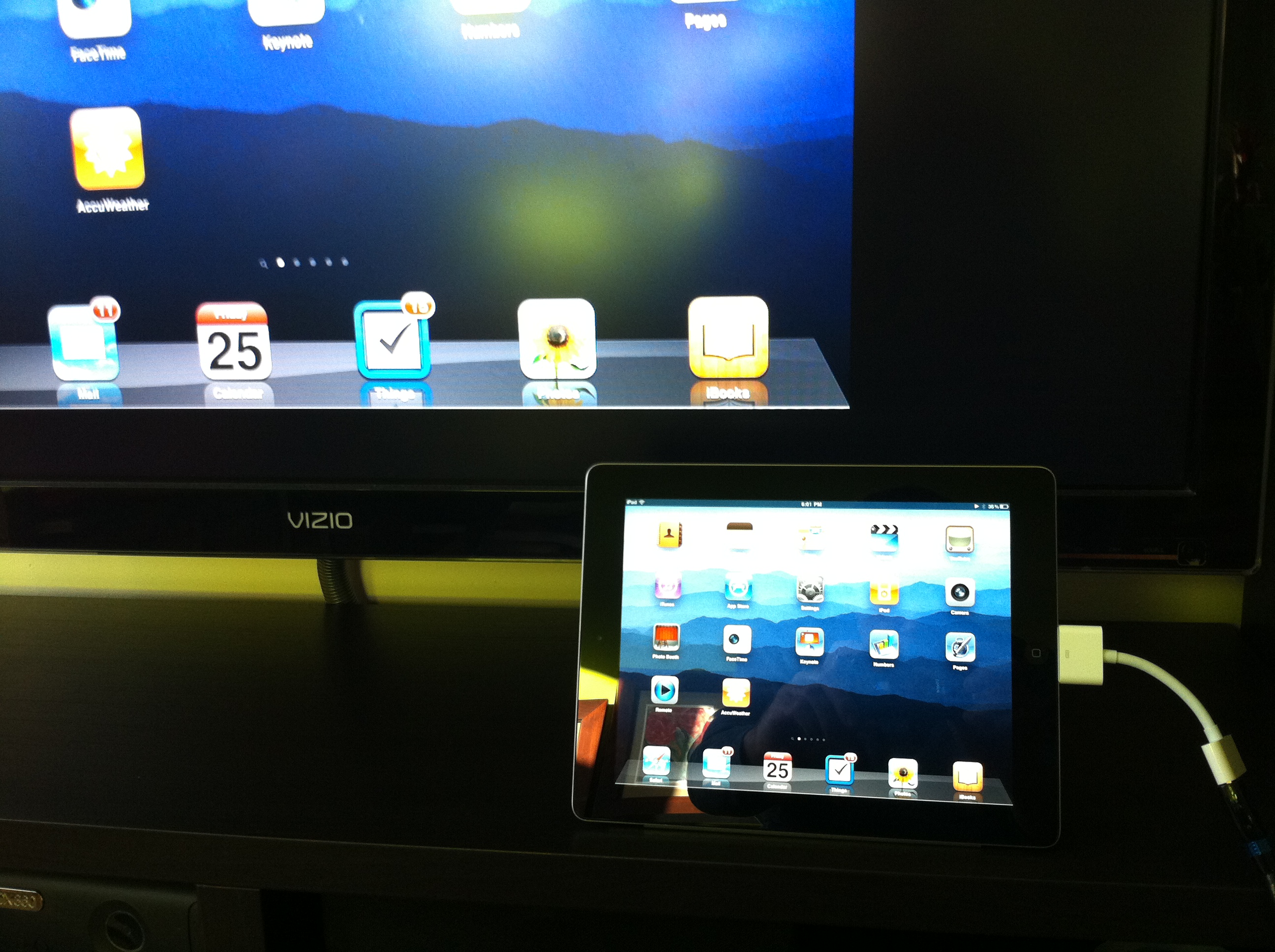
My iPad display mirrored on the Visio TV

The closest thing to it was the A/V cable, which allowed you to output some video streams to an external display. The built-in video player, the YouTube and Netflix apps all supported this feature. This was nice, but it still didn’t give you a way to mirror what you saw on your iPad — an essential capability if you want to demo an app (for example) to an audience.

Fortunately, this is one of the features the iPad 2 supports. It does require the new Apple Digital A/V Adapter ($39) and an HDMI cable. With this, I’m now able to mirror the display of my iPad to my 47″ Visio flatscreen TV and pipe everything through my Pioneer VSX-820 amp.

I’ll be using this at upcoming meetings in the very near future.

Want more? iLounge has a great, in-depth review of the new adapter.

Posted on — 9 Comments

Favorite iPhone Apps for Photography

I’ve always loved photography. When I was younger, I used a Konica SLR (even lugging that heavy thing over 200 miles on the John Muir Trail back in 1980). When digital cameras appeared on the scene, I quickly dove in. The ability to shoot… and shoot… and shoot as many photos as I wanted without worrying about film or developing costs blew my mind.

For years, I favored Canon’s compact point-and-shoot line. They are fast and produce great shots. This is exactly what I used last year when I hiked the John Muir Trail, and it served me well.

But more and more, I find myself using my iPhone for photography. It’s convenient (I always have my phone nearby) and coupled with the wonderful photo apps for the iPhone, it’s a blast! The apps encourage experimentation and photographic “play” — which is right up my alley.

Of course, one of the problems with apps is that there are so damn many of them. How do you find the good ones? And so, I present to you my list — the good ones — the iPhone photography apps worth getting.

Instagram

Instagram is a pretty basic app, but it’s so damned fun to play with! You can snap a photo “live” with the app or retrieve one from your photo library. Instagram will ask you to scale and crop it to a square format. That’s right, all Instagram-generated images are square. You can then apply any of a number of old school film-like effects that will make your photo look like a faded old polaroid or a Kodachrome print from the ’70s. Check out a few of my Instagram photos to get an idea of what you can do with it.

The latest version adds the ability to apply an effective tilt-shift effect for creating “miniature” scenes. But where Instagram really shines is in the social aspect. You can create friends (importing from Facebook or Twitter) and view their Instagram “streams” with likes and comments much like Facebook. And you can share your Instagram creations easily. Once you configure it, with one click you can upload to Twitter, Facebook, Foursquare, Flickr, and other services.

Instagram is currently my favorite iPhone photo app, and well worth the price (FREE!).  Don’t think, just get Instagram.

Slow Shutter Cam

Slow Shutter Cam is a recent addition to my iPhone photo app toolkit, but WOW — what results! It allows you to create those really cool looking slow shutter images that normally you’d need a much fancier camera to create. You’ll need a tripod for decent results (I like the GorillaMobile for the iPhone), but it’s a lot of fun.

This shot isn’t the best example, but it was one of my first creations with Slow Shutter Cam. This is actually the local train passing by. Interesting that it captured the light but the train itself became essentially “invisible.”

This app does a great job of capturing night scenes with traffic passing by, or running water, or any number of special photographic effects where you want to capture the sense of movement. Fun stuff. It’s $0.99, and worth it. Get Slow Shutter Cam.

Pro HDR

HDR effects are easily achieved on the iPhone with this great app. It takes two photos, so it works best with a tripod and a stationary subject. But the results can be stunning. Get Pro HDR; it’s only $1.99.

Here’s an example I created with Pro HDR:

AutoStitch

The forth and final must-have photo app on my list is AutoStitch. This let’s you create panoramic images with remarkable ease. They aren’t always perfect, but they are damned good considering how easy it is. I know; I’ve used a number of desktop apps on both Windows and Mac and spent hours generating panoramas. This does the same thing, on your iPhone, in just a few minutes.

Basically you take a series of overlapping photos, turning a few degrees between each shot. Then in AutoStitch, you drag the photos into a pool and let it rip. A few minutes later, you have a panorama! AutoStitch is also just $1.99. Get it!

There you have it — four great photography apps for your iPhone. If you haven’t had a chance to experiment with any photo apps, these are a good place to start. And if you know of some other apps that I should check, leave a comment and let me know.


Posted on — Leave a comment

Cutting the Cable: Nine Months Later

Last year I got fed up with my cable TV bill. I was paying about $120/month for cable TV alone! I don’t watch that much TV, yet somehow I had put up with paying for two premium channels and a package that included at least a hundred channels that I would never watch.

Just about nine months ago, I decided to cut that cable. I called Cox and asked them to discontinue both my land line phone service (which I never used) and my cable TV. It was weird, but I don’t think they really believed that I was truly canceling my regular television programming. They asked if I was switching to satellite (I wasn’t). They enticed me to stay with lower monthly rates (I didn’t). The only service I kept was their broadband Internet.

It was a calculated decision. I already had Netflix, with streaming movie capabilities. I had Xbox Live and iTunes, allowing access to still more movies and shows. I have a cable from my Mac Mini to my 47″ Visio so I can play movies or shows I’ve downloaded. Most of the programming that I cared about was available at a much lower cost.

How has it worked out?

The biggest gaps in my programming are live coverage such as news and sports. Of course, the Internet is also a great source for updates on both, but certain sporting events are just more enjoyable to watch as their played. For this, I met up with friends at a local sports pub to catch a game, and relied on Internet news sites rather than cable news for the latest happenings around the globe.

I’ve also found new sources of programming. Last fall I added a wifi-enabled Samsung Bluray player that I’ve ended up using more as a streaming device than for playing discs. I use it regularly with Hulu Plus, Vudu, Netflix, Vimeo and Pandora.

Xbox Live added ESPN3 back in November 2010. So far, this hasn’t been much use to me. They don’t include any NFL games; my primary sport. But I have used it to watch tennis.

Still, there are times when I miss turning on the TV to catch the local news as I get ready to start my day. Not a big deal, but missed. For a while, ivi TV looked promising. They offered streaming of broadcast TV channels from major cities including New York and Los Angeles. Unfortunately the networks have tied them up in the courts and shut down most of the programming they once had.

For now, my experiment in cutting the cable has been a huge success. I’ve saved about $1,000 over the past nine months, even after you add in my Hulu Plus subscription. If you’re comfortable with streaming and downloading programming, you may want to consider joining the ranks of cable cutters, too.

Have you cut the cord? If so, what has your experience been? If not, what’s holding you back?

Posted on — Leave a comment

Upgrading the iPad

Last week, Apple announced the iPad 2. It’s not a revolutionary upgrade, but a natural evolution of an already great product. I shared my thoughts on the iPad 2 over at BigBlueBall.

I’ve had my iPad since last October, and love it. Now that the iPad 2 is out, the natural question is whether to upgrade.

In my case, the decision is pretty easy. My girlfriend already has her eye on my “old” iPad, so I won’t have any problem finding it a good home. But what do you do if you don’t have a built-in buyer?

One of my co-workers Richard told me about a site called Gazelle where you can resell used electronic devices. It’s a much simpler process than selling direct through Craigslist. They even send you a prepaid Fedex box to ship your device in. He sold two first-generation iPads, and is ready to upgrade next weekend.

Of course, before you ship it off, you’ll want to erase all your personal data.

Restore to factory settings

Here are the steps to follow:

  1. On your iPad home screen, tap the Settings icon.
  2. Tap General in the menu to the left of the screen, then tap Reset.
  3. Here, you will have two options: “Reset All Settings” and “Erase All Content and Settings.” The former will restore all of your app settings to their original status. The latter will reset all app settings and erase all of your data (photos, apps, bookmarks, music, etc.). Choose “Erase All Content and Settings.”

At this point, the iPad will need to be reconnected to iTunes in order to be activated again. Let the new owner take care of that. You’re set!


Posted on — 4 Comments

LunaTik & TikTok Unboxed

LunaTik and TikTok are a pair of wrist bands specifically designed to turn your iPod Nano into a multi-touch wrist watch. These beautiful watch straps were designed by Scott Wilson, former creative director at Nike Watches and founder of the Minimal design studio. They are beautifully designed and perfectly matched to the Nano. The best complement I can make is that if Apple designed a wrist band for the iPod Nano, it would probably look like this.

What really makes this band interesting was the way Scott and the Minimal team developed it. They had a great idea for converting the iPod Nano into a multi-touch watch, and to raise the capital they needed to take the bands from concept to production, they turned to Kickstarter. Kickstarter  allows people with an idea for a product, production or service to recruit micro-investments. The “investors” give a few bucks (or more), and rather than getting a share of ownership, they get the satisfaction of supporting someone with a great idea achieve their dream. And in some cases (as with TikTok and LunaTik) you get something in exchange.

Scott smartly put together great donor levels incentives. Pledge $25 or more and get a TikTok band. Pledge $50 or more and you got a LunaTik iPod Nano watch conversion kit. For $70 or more you got both. There were even bigger, fancier packages. In Scott’s case, their goal was to raise $15,000 — the minimum they felt they needed to justify the cost of going to production. They set a pledge deadline of December 16, but the response surprised them.

In the end, 13, 512 backers pledged a total of $941,718!

Needless to say, the project was a success, not only for Scott Wilson and Minimal, but for Kickstarter as well. Not that it wasn’t without some bumps in the road. Fulfillment was fraught with problems, as it turned out Kickstarter allowed people to pledge money without giving full addresses — obviously necessary for those getting the watch bands.

Scott did a great job of keeping the backers up to date with regular emails outlining the progress. He included photos as he travelled to China to meet with the manufacturer and shared videos of the bands being made.

A few notes about TikTok and LunaTik

  • The are designed to work with the 6th generation iPod Nano (the current model, as of Feb. 2011).
  • The iPod Nano is not included.
  • It is super easy to remove the iPod Nano from the TikTok. Snap it in; snap it out.
  • The LunaTik, on the other hand, is accurately labeled a watch conversion kit. While you can technically take your iPod Nano back out, it takes a couple special tools and some time.
  • They are big, but there are bigger watches out there. It’s definitely more of a man-sized watch though (sorry ladies).

The final product? See for yourself. Click any image below for a larger version.

Check out other projects on Kickstarter, learn what else Minimal has been designing, and if you’re interested in the LunaTik and TikTok watch bands, you can find out more at LunaTik.com.

One Last Thought

Someone is probably wondering why I would need both a LunaTik and a TikTok band, after all, I only have on iPod Nano. The reality is, I do not need both. I am thinking of a clever way to give one away. If you’ve got any ideas, leave me a comment!

Posted on — 3 Comments

Vimeo Comes to the Big Screen

Yesterday I turned on my Samsung Blueray player to tune into Pandora (which sounds amazing cranked through my A/V system). I can count on one hand the number of times I’ve used my Blueray player to watch a disc, but I’m constantly using the various web apps: Netflix, Hulu Plus, and especially Pandora.

As the machine was powering up, I was notified of a system update. I always install updates, and this was not exception. While I love the device, I’ve got to ding Samsung on how they handle these updates. The process itself is smooth and trouble-free, but there’s no information about what the update includes! After some poking around I discovered that a new app to play Vimeo videos was available.

I’ve been using Vimeo for a while now to post videos for SoCal Hiker as well as sharing how-to and usability screencasts. The Vimeo interface is much more pleasant experience than the cluttered crap on YouTube, and Vimeo allows longer videos. As a result, the quality of content on Vimeo is generally much higher than YouTube.

Even so, I’ve never really done much browsing or watching Vimeo stuff on my computer. I typically only watch something when I run across it in the search for something else, like this video tutorial on creating a tilt-shift video. But I was curious to see what this new Vimeo app would do, so I installed it and fired it up.

It’s freaking amazing. Seriously.

The user interface is clean, hi-def and beautiful. I checked out some of my own videos first (vanity rules), then browsed a few of the curated channels. This is where I was completely, unequivocally sold.

Here’s how it works…

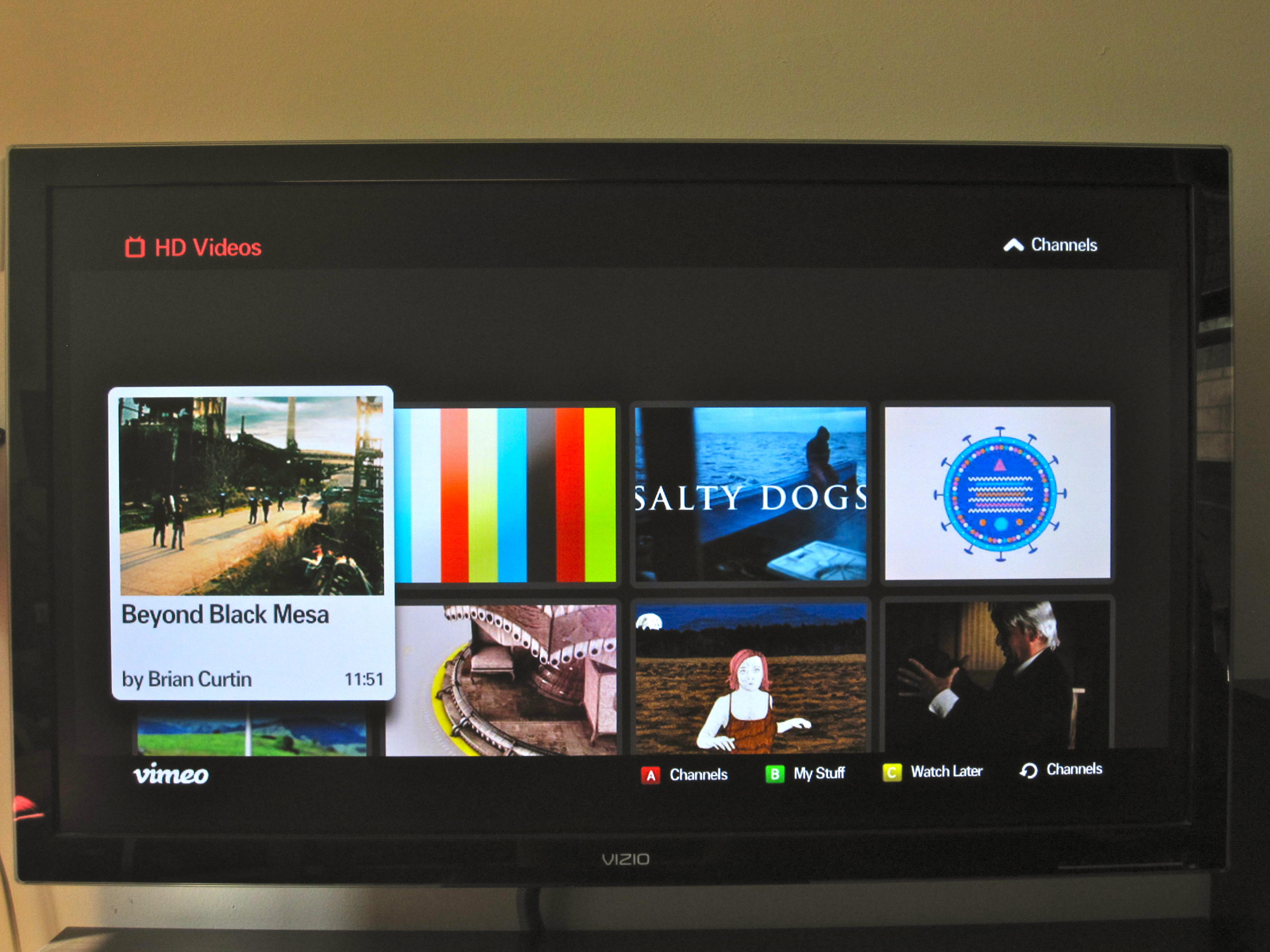
First you select a channel that looks interesting. There’s a number of really nice ones, but the HD channel is a great starting point.

Once you’ve selected the channel, you’ll see a scrolling list of the videos contained in that channel. You can simply hit play or browse through and find something that piques your interest.

Since I was in discovery mode, I hit play and went back to my Saturday chores. I kept getting sucked back in. Without touching it, videos queue up and play one after another. The content ranged from a documentary from an urban adventurer illegally exploring the subway tunnels of NYC, to an innovative music video, to an artistic (and creepy) Japanese short film. It was terrific content, and I could easily see letting this just play for hours.

William Gibson said, “The future is already here – it’s just not very evenly distributed.” This is the future of television programming, and it’s here now.

You can find me here on Vimeo.