Posted on 3 Comments

Create Amazing Infographics About Your iPhone Photos

Infographics have become a popular way to convey a lot of information in a concise form. Rich with data, they leverage graphics to provide context to the numbers. Now a clever Swedish company called Dear Future Astronaut has released a $0.99 iPhone app that will analyze your photos and produce a beautiful infographic analysis.

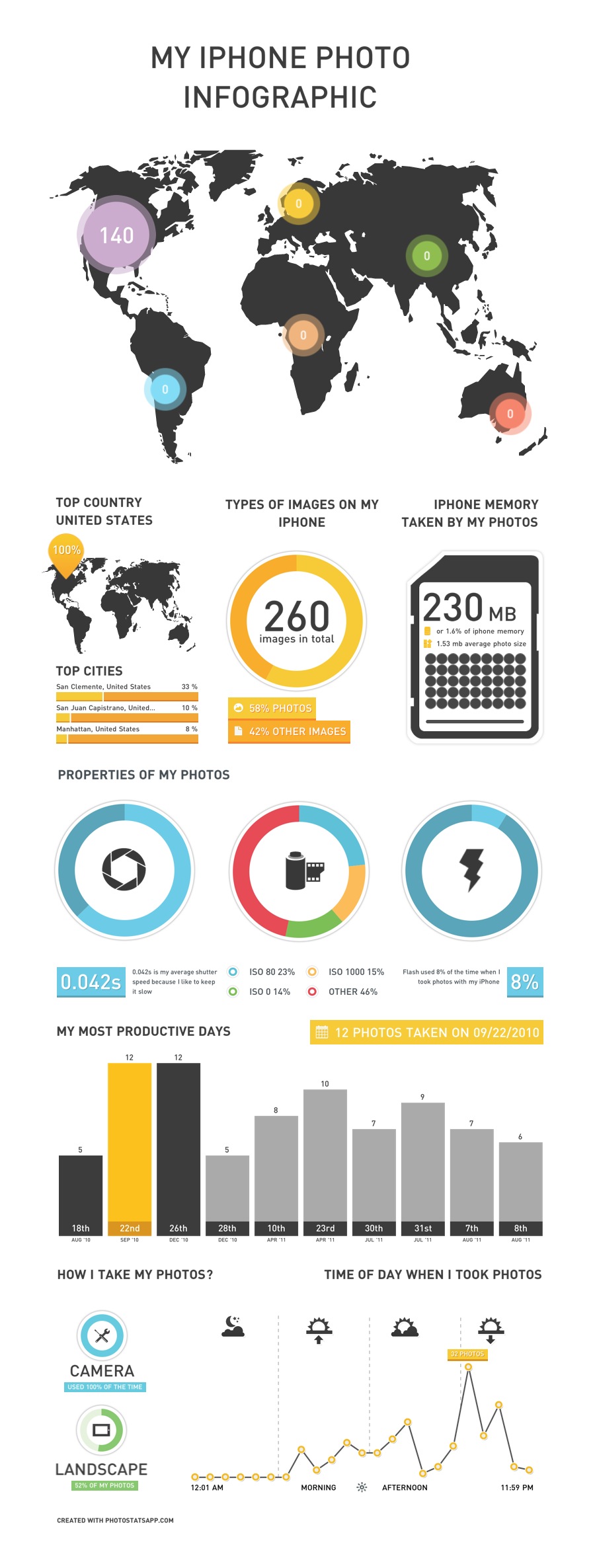
I recently purged about 1,000 photos from my iPhone, but Photo Stats didn’t mind. It still created the following, beautiful infographic that analyzed the 266 photos still on my iPhone.


Photo Stats will show you where, when and how you took your photos, with location, time of day, your “most productive” days and various photo properties like portrait vs. landscape, ISO setting and photo app used.

The $0.99 price is reasonable, although they say it’s a promotion only good for the first week. After that, it goes up to a whopping $1.99 (still a deal, in my book). Go get Photo Stats, and share a link to your Photo Stats in the comments below.

Posted on 3 Comments

Gaming, Circa 1974

As long as I can remember, this simply designed wooden game sat on the coffee table in my grandparents living room. Growing up, I loved playing the game with my grandpa and grandma. The gameplay was simple. You spun the top, hoping it knocked the eight wooden balls into the eight divots. Each divot had a point value. Once the top stopped, you added up your score. Your opponent took their turn, and you repeated until you were tired of playing or dinner time arrived — whichever came first. Dinner usually won.

This was all long before the age of Mortal Kombat, World of Warcraft and even before the Internet (as we know it today). I didn’t care (not that I knew better). The game was just fun!

My grandparents have both since passed on, and the game now sits on my coffee table, in my living room. And the game still makes me smile. Partly, it’s the memories that it brings me. But a big part is the simple joy of a well-designed game. No batteries required.

Sometimes in life, it’s the simple things that bring us joy.

I shot these photos with my iPhone 4 mounted on a GorillaMobile tripod. To capture the motion of the spinning top, I used the Slow Shutter Cam app. I created the collage with Diptic and stylized it to give it a “70’s” look and uploaded with Instagram. I’m really pleased with the results.

Sometimes in life, it’s the complex things that bring us joy.


Posted on 3 Comments

Translation? There’s an App for That

Translation has long been a tough thing to do with any degree of accuracy. Remember “All your base are belong to us?

When Google Translate was introduced on the web years ago, it was an impressive and useful tool — even if it didn’t do a perfect job. Well the tools have progressed. Google Translate on the web added the ability to not only read the translation, but hear it spoken.

Of course, the missing bit in all of this is mobility. When you’re traveling abroad and speak just enough to eek by, it’s helpful to have a phrase book or dictionary. Or it was. Now Google has effectively rendered all those dedicated translator devices, phrasebooks and dictionaries obsolete. All you need now is an iPhone (or Android… I’m told) and their Google Translate app.

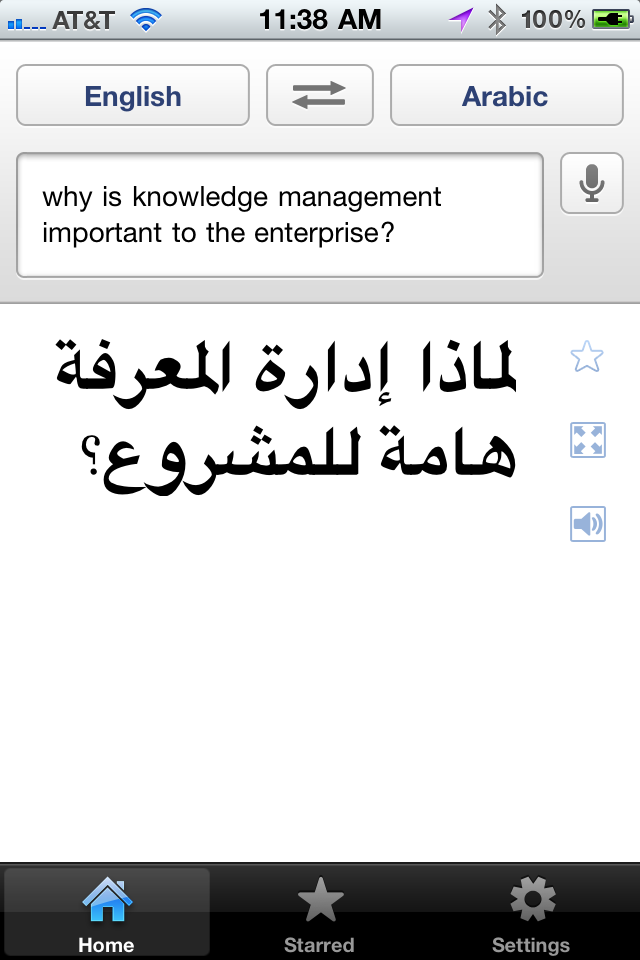
The new app offers several nice features. First, you don’t need to type. Just speak into the phone, select the language you want it translated to, and the app will show you the translated text. Google Translate on the iPhone supports voice input for 15 languages, translation into more than 50 languages, and you can hear the phrase spoken in 23 supported languages.

You can also hit a button to display the translated phrase full screen, to show to your taxi driver or waiter, for instance. And instead of spending a bundle of money on a dedicated translator device, you can get this app (it’s free) and use the savings on your trip!

There is one important caveat. The Google Translate requires an Internet connection. I tested it over both wifi and 3G, and it worked fine, including listening to the translated phrase in the target language. But this is becoming less and less of an issue. I’ve used my iPhone all over the world, from Chile to Abu Dhabi and throughout Europe with no problem.

Cette application va être utile quand je Voyage à Paris plus tard cette année!

Posted on 3 Comments

ToonPaint iPhone App Turns Photos Into Comics

Bethany and Dan in Laguna Beach

I usually reserve the fun stuff for weekends, but this was too hot to wait. If you’ve got an iPhone and like to play around with photos, you’ve got to check out the ToonPAINT app. You can use the camera or open an image from your photo gallery and it converts it to a comic-book styled image. You’ve seen this style before. It first showed up in the Charles Schwab commercials, and then soon after in the film adaptation of Philip K Dick’s A Scanner Darkly (appropriately set in Orange County).

ToonPAINT does a damn good job without any manipulation. If you want, you can colorize the images afterwards, but even without doing so, you get some pretty interesting results.

Bethany and Dan, comic book style

Here’s a quick test I ran with a photo of my daughter Bethany and my eldest son Dan, taken a few years ago in Laguna Beach.

Other than cropping the “toon” version a little tighter, I didn’t do any further editing to the generated image. Not bad for a completely automated conversion!

You can get ToonPAINT here. It’s not free, but it’s worth the 2 bucks for the entertainment value if nothing else.

If you give it a try, post a link to your experiments in the comments below.

Posted on 2 Comments

Flipboard: The Number 1 Must-Have iPad App

My iPad has officially replaced my trusty Moleskine notebook. Instead of paper and pen, my iPad comes to my meetings, to Starbucks, and pretty much everywhere I go. There are a lot of wonderful apps for the iPad, and I’ll get into them in good time. But one app really stands out in it’s design, beauty and function — Flipboard.

I first read about Flipboard months before I finally plunked down the cash for an iPad, and it had already captured my attention. It’s remarkable in that Flipboard really doesn’t do anything that I couldn’t do before.

What is Flipboard?

Essentially, Flipboard is a different way of reading and consuming media that I’ve already been reading and consuming via other means. What makes Flipboard remarkable is that it does it so elegantly.

Flipboard transforms Twitter, Facebook, Flickr, Google Reader and RSS feeds into a beautiful, magazine-like interface that leverages all the good bits of the iPad. A Twitter stream is noisy and difficult to browse. The same stream through Flipboard is a pleasure. Links, photos and videos show up inline without requiring extra clicks, making browsing your streams not only a pleasure, but making it possible in a new way.

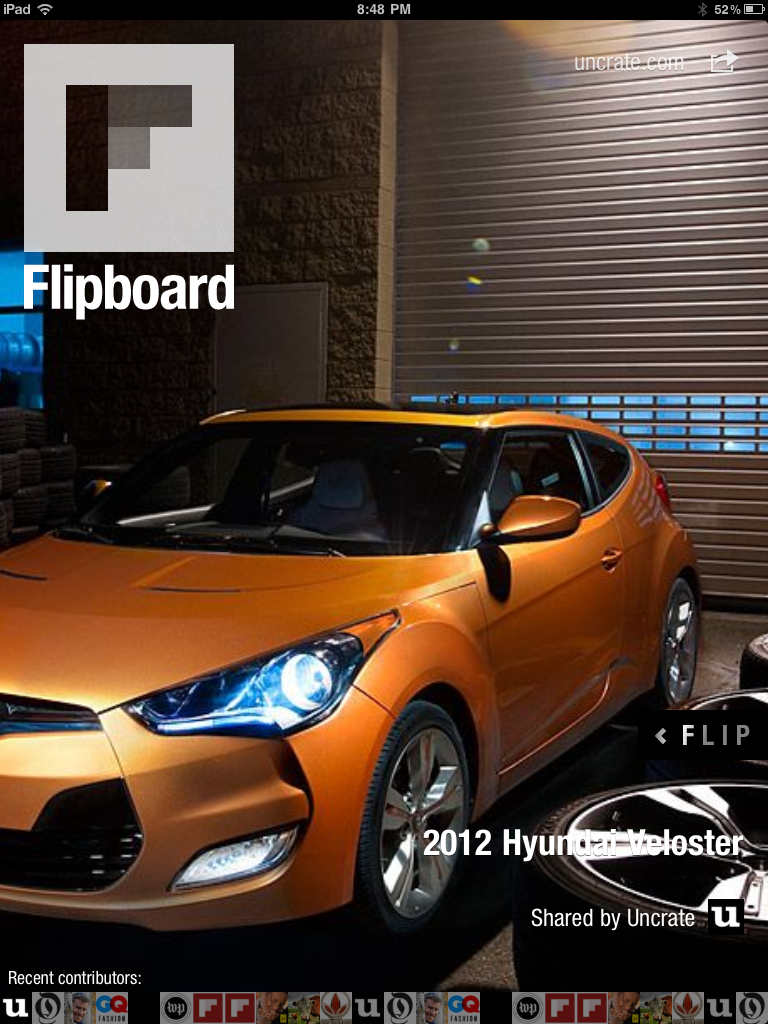
Here are a few screenshots to help tell the Flipboard story. Click any thumbnail to browser the larger images.

I still use Twitter and Facebook, but reading the same streams via Flipboard never fails to surface new and interesting conversations that I might have otherwise overlooked.

If you have an iPad, you must download and use Flipboard. Hell, it’s free.

If you don’t have an iPad, Flipboard might be reason enough to get one.