 I was giving Rutger Hensel some grief over just discovering the excellent (and free) Waze app for turn-by-turn driving directions. It provides a lot of the functionality of TomTom, but it’s $99 less! He asked me what other apps I recommended, and I promised to share it here.
Unfortunately, I have way too many apps to cover in a single post, so I’m going to post a series covering my favorite apps, breaking it down based on how I organize my apps and beginning with utilities.
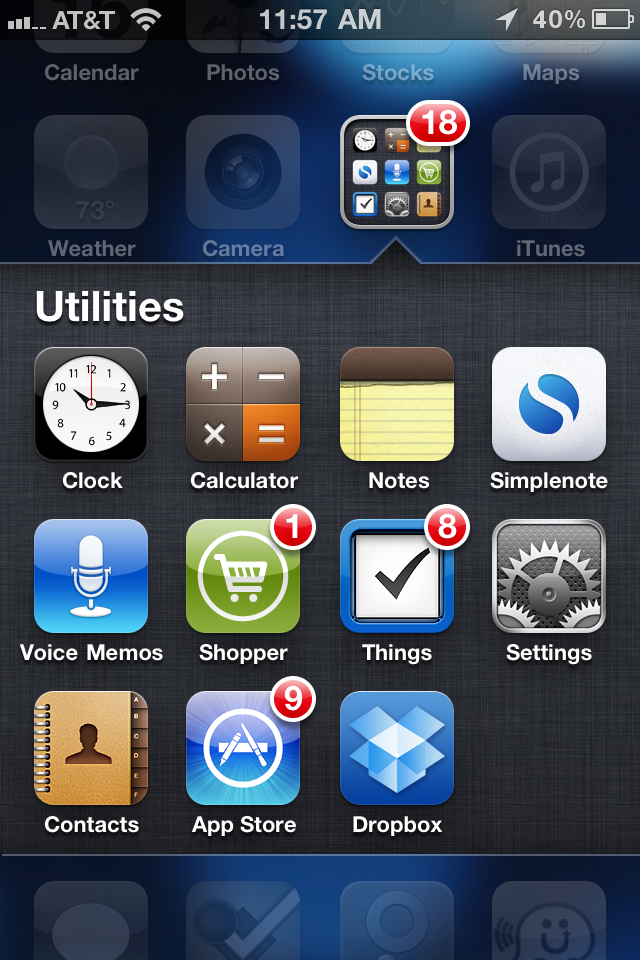
As you can see, I like to keep things organized in folders. I still have multiple pages of apps — nine at last count — but I want the apps that I use regularly on the first three pages. This means that folders are a necessity.
First up on page one is my Utilities folder. Most of the apps here are standard iPhone apps like the Clock (which I use as my alarm clock and a timer when cooking), the Calculator, Notes, Voice Memos, the App Store and Contacts. I put Settings in here as well, only because I don’t use it every day.
To this group I’ve added the following four indispensable iPhone utilities:
Simplenote
Simplenote is a terrific little free utility that is part Notes, part DropBox. You create an account and then you can use Simplenote from your iPhone, iPod Touch, iPad or computer. It’s essentially like the regular Notes app, with one significant difference — your notes are saved in The Cloud. This means that you can create, access and edit your notes from whatever Internet-connected device happens to be handy. I use this for lists and note-taking on my iPhone or iPad, then access them later from my desktop. On my desktop, I just use my browser, but there are a number of desktop clients for both Macs and PCs available.
Shopper

I started using Shopper to build my grocery list, but have since used it for trips to the home improvement store and pretty much anything else I would shop for. I like that I can simply and quickly add items to any of my multiple lists right when the idea strikes. As I go through the aisles at the market, I check off the items that I put in my basket. Note that there is a free version and a commercial version. I’ve only used the free one, and it fits the bill better than anything else I’ve run across.
Things
One of the basic functions notably missing from the iPhone is task management. Things is a commercial app, and at $9.99 for the iPhone, it ain’t cheap. But it is elegant, intuitive, and works exactly like I need. It was worth the $9.99. There is also a $19.99 version optimized for the iPad, and I’ve since graduated to that. What I haven’t done (yet) is spring for the $49 Mac app, which would sync everything. For now, the iPad version fits the bill for me, but if you only have an iPhone, Things still rocks.
Dropbox

Last but not least is one my favorite utilities. I started using DropBox as brainlessly simple way to share files between PCs. Since then, I’ve added the DropBox app to my iPhone and iPad. How does it work? Essentially it creates a special folder on your device where the files you want to share are stored. I use it primarily for personal sharing between my own devices — multiple computers and OS, and multiple mobile devices. But I’ve also had occasion to use it with clients to share larger files like videos and images. You choose what you share and what you keep to yourself.
Dropbox has saved my butt many times, giving me easy access to all my essential working files whenever and wherever I need them. And it’s free, although you can pay for additional storage.
Of course there are other apps I use that might be considered utilities, but these are my personal favorites. Next week, I’ll look at my favorite photography apps.
Do you have a favorite utility that I’ve overlooked? Share in the comments below.