Memolane announced that they were acquired and the Memolane website and services shut down on February 22, 2013. Hopefully good for the employees and investors, but sad for those of us who enjoyed this cool way to aggregate and visualize your online presence. Timehop is a similar (but in my opinion, not nearly as cool) service that can partially fill the gap. And of course the Facebook timeline took a lot of the wind out of Memolane’s sails. I wish them the best in their new endeavors. And thanks… for the memories.
The remainder of this post serves as a record of what was, but no longer works. – Jeff
Regular readers know I’ve been extolling the virtues of Memolane for a while now. Joan and I used it during our three weeks in Paris to create a travelog of our adventures.
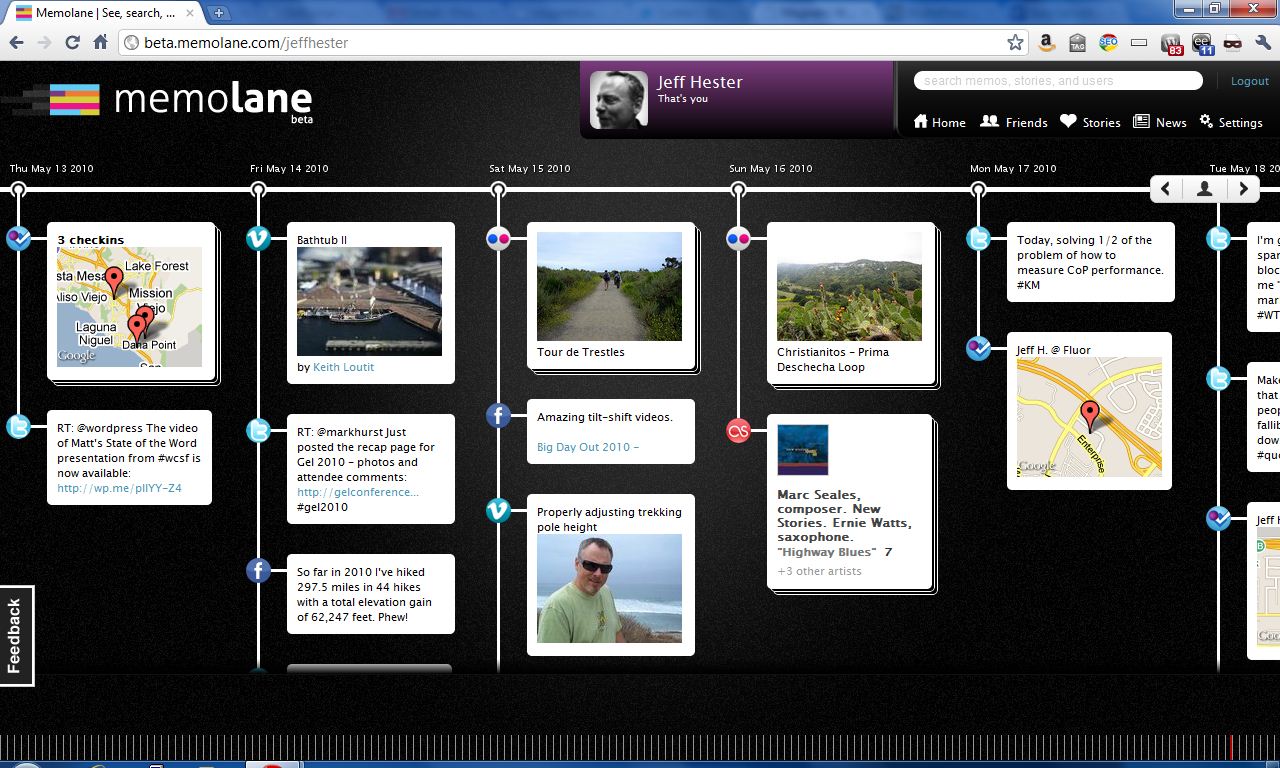
Some time ago, the good folks at Memolane made it super easy for self-hosted WordPress users to embed their Memolane or stories right on their blog, like my own “lane” below. Give it a try! Click and drag the “lane” left to right, or down to view days with many entries. Click on an item to expand the view.
Do you have an iPad? If so, you’ve probably tried one of my favorite apps — Flipboard. Flipboard gives your iPad a magazine-like interface to Twitter, Facebook, Google Reader and other news streams.
Whether you have an iPad or not, now you can give your WordPress-powered website the same cool Flipboard experience on the iPad. It’s super easy and with the new Onswipe plug-in, it’s free. Here’s how it’s done.
If your site is hosted on WordPress.com, the plugin is automatically available for you. If your WordPress site is self-hosted (i.e. WordPress.org) then you’ll first need to install the free Onswipe plugin.
Onswipe gives your website a magazine-like feel
Installing and Configuring Onswipe
From the admin console, go to Plugins > Add New and search for Onswipe.
Install and activate the plugin.
Set the permissions of the thumbs cache folder (WP-Contents/uploads/thumbs-cache) to 777. This allows Onswipe to cache generated thumbnails to make the iPad version of the site load faster for subsequent requests.
Once you’ve installed Onswipe, you can find the configuration options in the Appearance panel.
The Cover logo does double-duty as the home screen icon and should be 200×200 pixels transparent PNG.
The launch screen image only shows up if someone adds a link to your site on their iPad home screen, then launches the site from their home screen. But it’s a nice touch. Make it exactly 768×1004 pixels.
You can also tweak the display font and skin color. Note that while these fonts are available on the iPad, they may or not be available on your computer. If the fonts are installed on your computer, you’ll see the sample text reflect the correct font selection.
Onswipe will automatically detect iPad browsers and display the new swipe-able interface. You can toggle this on and off as needed.
Before and After Onswipe
Here’s what Jeff Hester.net looks like on an iPad before:
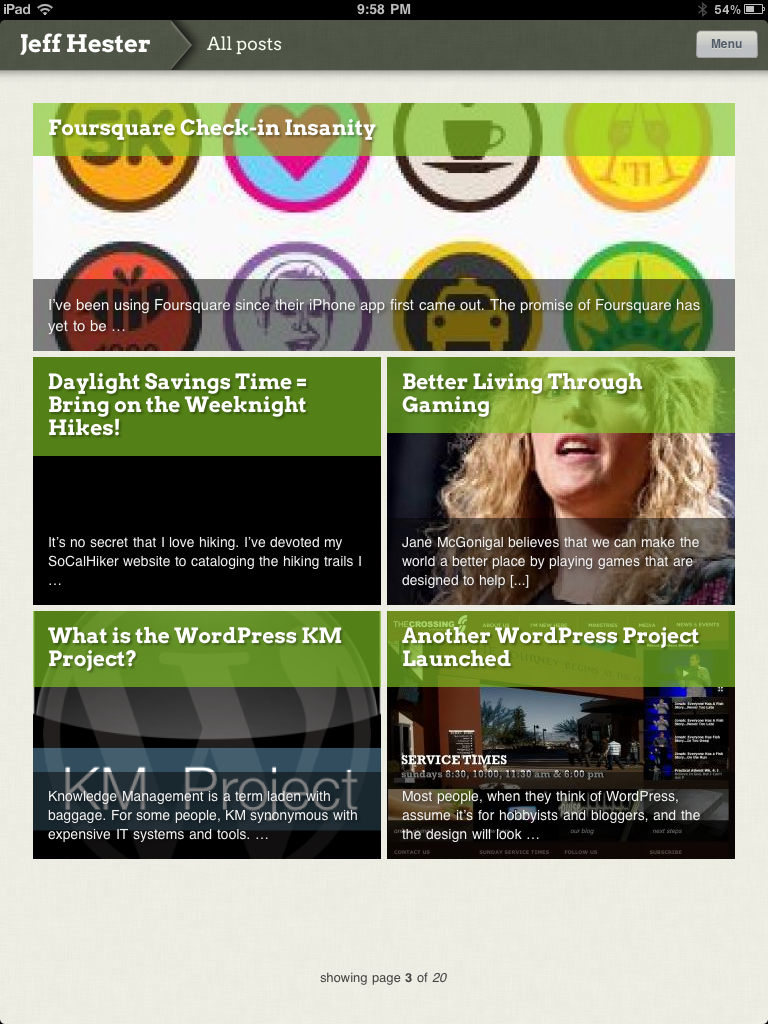
And after installing Onswipe:
A sample post viewed via Onswipe:
Onswipe Features and Gotchas
Onswipe is super easy to install and configure. Their website claims it provides “insanely easy tablet publishing” and I found that to be true. Once it’s setup, it just works. You can swipe to browse through the index, and Onswipe will detect the orientation of your iPad and automatically reformat things (portrait or landscape).
But there are a few caveats that might keep you from using Onswipe.
If you absolutely need access to widgets on the iPad, forget Onswipe. It provides a simplifed interface (much like an iPad app). Onswipe doesn’t support sidebars and widget areas.
Onswipe doesn’t support Facebook comments or other comment systems that don’t store comments in the WordPress database.
There is currently no way for the user to specify the “full” version of the website, if they so desire. It’s either on or off for everyone.
If you are signed into your WordPress admin console on your iPad (i.e. you checked “remember me”) the Onswipe interface won’t show until you sign out.
There is no way to browse tags; only categories are currently supported.
The Onswipe website considers this 1.0 release a “preview” and asks you to sign-up for email notification when they “officially” launch, but you don’t need to do that to download or use this plugin.
The Bottom Line
Is Onswipe worth trying? If you care about providing iPad users with a great experience, and your site primarily leverages posts vs. pages, you should definitely consider Onswipe. If you’re site is primarily page-driven (as many CMS-centric sites are) Onswipe is not for you.
At WordPress.com, they are already seeing about 750,000 daily page views from iPads, and that figure is growing. For that reason alone, Onswipe is worth a look.
“Sing a song of sixpence,
A pocket full of rye.
Four and twenty blackbirds,
Baked in a pie…”
– Sing a Song of Sixpence, popular nursery rhyme*
Growing up, we all sang the familiar song. Thankfully, I’ve never tasted blackbird pie (nor do I desire to). I never even really thought much about what I was singing as a child, otherwise I might have gagged.
Fortunately, there’s a new kind of Blackbird Pie that’s actually quite tasty. I’m referring of course to the fantastic Blackbird Pie plugin for WordPress.
The Blackbird Pie plugin let’s you easily quote a tweet with the links and look of the original tweet, like this:
Blackbird Pie adds an icon to the TinyMCE visual editor. When you are editing your post, click the Blackbird button and you’ll see a screen that let’s you paste in the URL to the tweet you want to share, or search for a tweet.
My original tweet. The URL is highlighted and copied to the clipboard.
Here’s the dialog for inserting a tweet:
The sweet thing about Blackbird Pie is that all the links that would be “live” in the original tweet are live in your post as well, including linked Twitter handles, the client used and any links.
The Twitter API is called only the first time. The generated HTML is stored in a hidden custom field so subsequent loads won’t rely on Twitter uptime.
If you ever have occasion to post a tweet on your WordPress-powered website, Blackbird Pie is a must-have plugin. And it’s also supported on WordPress.com, too!
*Incidentally, some say the 24 blackbirds baked in a pie refers to an actual historical event. Who knew?!
I can see the headline now: “Time travel is now a reality,” says leading WordPress scientist.
One of the features that many people either 1. never learned about or 2. forget that it is there is the ability to schedule posts for publication at a specific date and time.
By default, when you initially publish a post or page, or save a draft, WordPress will grab the current date and time and use this as the publication date. You can override this to either back-date a post or post date for future publishing. This is great for scheduling posts when you know you want to announce something when you will be offline, or when you need to embargo information until a particular time.
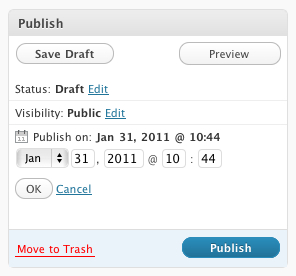
To change the publish date, simply click the edit link in the Publish block and you’ll gave options to set the month, day, year and time of the post. Yes, time travel really is possible.
Note that if you select a date in the future, the Publish button smartly changes to a Schedule button. Pretty clever.
If you are going for consistency over time, another great tool is the Editorial Calendar plugin available in the WordPress plugin repository. This adds a new Calendar link in your Posts menu, which then displays a scrollable calendar showing all your posts plotted over it. From here you can add new posts, schedule posts for future publication and get a clear picture of when articles need to be ready. Here’s a screencast from the plugin author Zack Grossbart that shows all the bells and whistles.
I’m using this more and more as I add rigor to my publishing schedule as part of my project for 365 posts in 365 days. I’m able to slot in topics that I know I want to cover, and do it on a timeline that makes sense. I can collect my thoughts in a draft mode, then polish up the post before publication. If I finish early, I just schedule the post to go live on the selected date.
What tips and techniques do you use to manage your editorial calendar?
I did some housekeeping here at www.jeffhester.net today, cleaning up some problems caused by legacy files being mixed in with the latest WordPress 2.3.2 stuff. In the process, I made a number of changes. One change that I particularly like is the inclusion of ContentRobot’s very cool iWPhone plug-in (see the screenshot for an example of how this blog looks on my iPhone).
I’ve also updated the theme using N.Design Studio’s Mac-inspired Glossy Blue. I’m very happy with the shades of blue and green, though I’ll probably end up creating my own version with similar colors and a wider layout eventually.
I’m currently using the following plug-ins (in alphabetical order):
Akismet does such a great job of filtering out spam comments that I don’t even bother checking for false positives anymore. It’s a must for anyone running WordPress.
Feedsmith is also an essential — if you are already using Feedburner. And if you’re not, why not? It’s free and offers great stats on who has subscribed to your content.
Donncha’s Flickr Widget makes it easy to add a badge to your site. I’m using it for now, but I’m keeping my eyes open for something with greater configurability. I took a look at Erik Rasmussen’s Flash Flickr Badge Widget, which offers the configurability I want, but it caused problems (the WP Plugin page turned blank upon activating). So the search continues. If you know of anything better, please let me know.
Gregarious is an awesome social tagging plug-in that I also consider a must-have for WordPress bloggers. It is clean, simple, highly configurable and pretty fucking cool. That says a lot. Dont’ think; just get it and use it.
The MyBlogLog Widget is really just a custom text widget. You still have to cut-and-paste their javascript code to get it to display, but it is a nice way to see recent visitors.
The Scrobbles Widget shows your recently played music. You’ve got to have an account on last.fm, but works like a charm and also highly configurable.
Alex King’s Twitter Tools are indispensible for Twitter users. It will show your most recent tweets, auto-notify your Twitter followers of your new blog posts, and give you the option of posting new tweets directly from your blog.
Viper’s Video QuickTags make it super easy to embed video content from YouTube and a slew of other popular video sites. No, it’s not particularly difficult to do it yourself, but hey, I’m lazy!
The relatively new WordPress.com Stats plug-in is also very nice. I’ve now got it installed on two blogs, and it seems to do a great job of providing all sorts of great data without any perceptible performance penalty. Nice.
And last, but not least, the venerable scalability powerhouse: wp-cache. If there was one thing I took away from this year’s WordCamp, it was that you mustuse wp-cache; it’s that good. I have it installed and activated, but not turned on. Next time I get dugg or slashdotted, I’ll quickly flip it on and let the server smoothly handle the extra load.
So there is the update for Sunday. I still have a long list of projects to write about, but I’ll get to that after dinner.




 The Cover logo does double-duty as the home screen icon and should be 200×200 pixels transparent PNG.


 “Sing a song of sixpence,

 By default, when you initially publish a post or page, or save a draft,
