I’ve always loved photography. When I was younger, I used a Konica SLR (even lugging that heavy thing over 200 miles on the John Muir Trail back in 1980). When digital cameras appeared on the scene, I quickly dove in. The ability to shoot… and shoot… and shoot as many photos as I wanted without worrying about film or developing costs blew my mind.
For years, I favored Canon’s compact point-and-shoot line. They are fast and produce great shots. This is exactly what I used last year when I hiked the John Muir Trail, and it served me well.
But more and more, I find myself using my iPhone for photography. It’s convenient (I always have my phone nearby) and coupled with the wonderful photo apps for the iPhone, it’s a blast! The apps encourage experimentation and photographic “play” — which is right up my alley.
Of course, one of the problems with apps is that there are so damn many of them. How do you find the good ones? And so, I present to you my list — the good ones — the iPhone photography apps worth getting.

Instagram
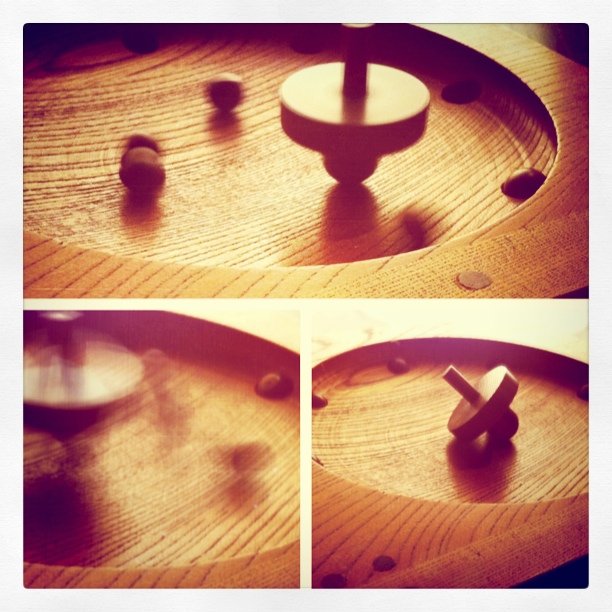
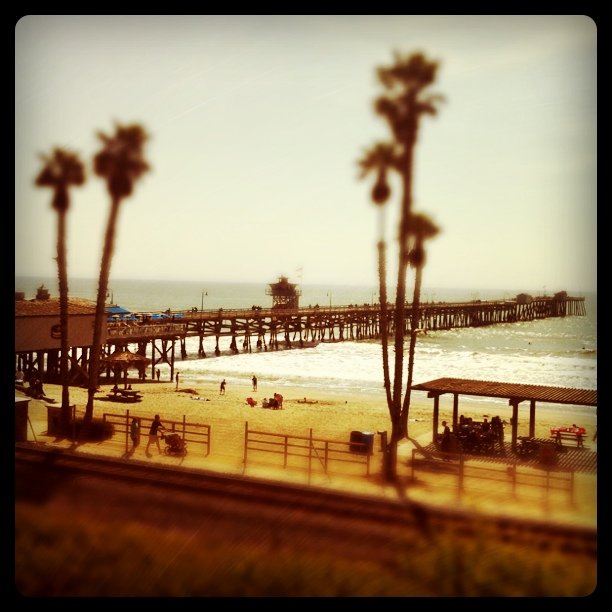
Instagram is a pretty basic app, but it’s so damned fun to play with! You can snap a photo “live” with the app or retrieve one from your photo library. Instagram will ask you to scale and crop it to a square format. That’s right, all Instagram-generated images are square. You can then apply any of a number of old school film-like effects that will make your photo look like a faded old polaroid or a Kodachrome print from the ’70s. Check out a few of my Instagram photos to get an idea of what you can do with it.
The latest version adds the ability to apply an effective tilt-shift effect for creating “miniature” scenes. But where Instagram really shines is in the social aspect. You can create friends (importing from Facebook or Twitter) and view their Instagram “streams” with likes and comments much like Facebook. And you can share your Instagram creations easily. Once you configure it, with one click you can upload to Twitter, Facebook, Foursquare, Flickr, and other services.
Instagram is currently my favorite iPhone photo app, and well worth the price (FREE!). Don’t think, just get Instagram.
Slow Shutter Cam
Slow Shutter Cam is a recent addition to my iPhone photo app toolkit, but WOW — what results! It allows you to create those really cool looking slow shutter images that normally you’d need a much fancier camera to create. You’ll need a tripod for decent results (I like the GorillaMobile for the iPhone), but it’s a lot of fun.

This shot isn’t the best example, but it was one of my first creations with Slow Shutter Cam. This is actually the local train passing by. Interesting that it captured the light but the train itself became essentially “invisible.”
This app does a great job of capturing night scenes with traffic passing by, or running water, or any number of special photographic effects where you want to capture the sense of movement. Fun stuff. It’s $0.99, and worth it. Get Slow Shutter Cam.
Pro HDR
HDR effects are easily achieved on the iPhone with this great app. It takes two photos, so it works best with a tripod and a stationary subject. But the results can be stunning. Get Pro HDR; it’s only $1.99.
Here’s an example I created with Pro HDR:

AutoStitch
The forth and final must-have photo app on my list is AutoStitch. This let’s you create panoramic images with remarkable ease. They aren’t always perfect, but they are damned good considering how easy it is. I know; I’ve used a number of desktop apps on both Windows and Mac and spent hours generating panoramas. This does the same thing, on your iPhone, in just a few minutes.

Basically you take a series of overlapping photos, turning a few degrees between each shot. Then in AutoStitch, you drag the photos into a pool and let it rip. A few minutes later, you have a panorama! AutoStitch is also just $1.99. Get it!
There you have it — four great photography apps for your iPhone. If you haven’t had a chance to experiment with any photo apps, these are a good place to start. And if you know of some other apps that I should check, leave a comment and let me know.