Posted on 3 Comments

Create Amazing Infographics About Your iPhone Photos

Infographics have become a popular way to convey a lot of information in a concise form. Rich with data, they leverage graphics to provide context to the numbers. Now a clever Swedish company called Dear Future Astronaut has released a $0.99 iPhone app that will analyze your photos and produce a beautiful infographic analysis.

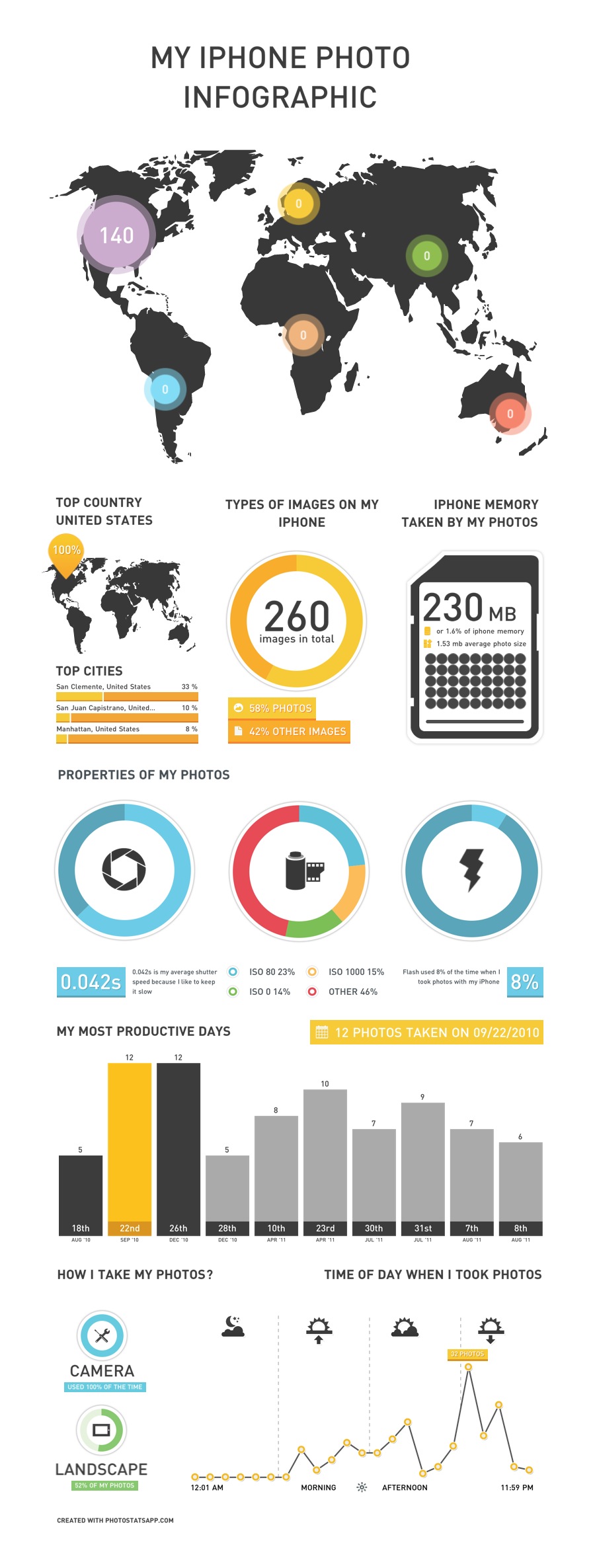
I recently purged about 1,000 photos from my iPhone, but Photo Stats didn’t mind. It still created the following, beautiful infographic that analyzed the 266 photos still on my iPhone.


Photo Stats will show you where, when and how you took your photos, with location, time of day, your “most productive” days and various photo properties like portrait vs. landscape, ISO setting and photo app used.

The $0.99 price is reasonable, although they say it’s a promotion only good for the first week. After that, it goes up to a whopping $1.99 (still a deal, in my book). Go get Photo Stats, and share a link to your Photo Stats in the comments below.

Posted on 9 Comments

Favorite iPhone Apps for Photography

I’ve always loved photography. When I was younger, I used a Konica SLR (even lugging that heavy thing over 200 miles on the John Muir Trail back in 1980). When digital cameras appeared on the scene, I quickly dove in. The ability to shoot… and shoot… and shoot as many photos as I wanted without worrying about film or developing costs blew my mind.

For years, I favored Canon’s compact point-and-shoot line. They are fast and produce great shots. This is exactly what I used last year when I hiked the John Muir Trail, and it served me well.

But more and more, I find myself using my iPhone for photography. It’s convenient (I always have my phone nearby) and coupled with the wonderful photo apps for the iPhone, it’s a blast! The apps encourage experimentation and photographic “play” — which is right up my alley.

Of course, one of the problems with apps is that there are so damn many of them. How do you find the good ones? And so, I present to you my list — the good ones — the iPhone photography apps worth getting.

Instagram

Instagram is a pretty basic app, but it’s so damned fun to play with! You can snap a photo “live” with the app or retrieve one from your photo library. Instagram will ask you to scale and crop it to a square format. That’s right, all Instagram-generated images are square. You can then apply any of a number of old school film-like effects that will make your photo look like a faded old polaroid or a Kodachrome print from the ’70s. Check out a few of my Instagram photos to get an idea of what you can do with it.

The latest version adds the ability to apply an effective tilt-shift effect for creating “miniature” scenes. But where Instagram really shines is in the social aspect. You can create friends (importing from Facebook or Twitter) and view their Instagram “streams” with likes and comments much like Facebook. And you can share your Instagram creations easily. Once you configure it, with one click you can upload to Twitter, Facebook, Foursquare, Flickr, and other services.

Instagram is currently my favorite iPhone photo app, and well worth the price (FREE!).  Don’t think, just get Instagram.

Slow Shutter Cam

Slow Shutter Cam is a recent addition to my iPhone photo app toolkit, but WOW — what results! It allows you to create those really cool looking slow shutter images that normally you’d need a much fancier camera to create. You’ll need a tripod for decent results (I like the GorillaMobile for the iPhone), but it’s a lot of fun.

This shot isn’t the best example, but it was one of my first creations with Slow Shutter Cam. This is actually the local train passing by. Interesting that it captured the light but the train itself became essentially “invisible.”

This app does a great job of capturing night scenes with traffic passing by, or running water, or any number of special photographic effects where you want to capture the sense of movement. Fun stuff. It’s $0.99, and worth it. Get Slow Shutter Cam.

Pro HDR

HDR effects are easily achieved on the iPhone with this great app. It takes two photos, so it works best with a tripod and a stationary subject. But the results can be stunning. Get Pro HDR; it’s only $1.99.

Here’s an example I created with Pro HDR:

AutoStitch

The forth and final must-have photo app on my list is AutoStitch. This let’s you create panoramic images with remarkable ease. They aren’t always perfect, but they are damned good considering how easy it is. I know; I’ve used a number of desktop apps on both Windows and Mac and spent hours generating panoramas. This does the same thing, on your iPhone, in just a few minutes.

Basically you take a series of overlapping photos, turning a few degrees between each shot. Then in AutoStitch, you drag the photos into a pool and let it rip. A few minutes later, you have a panorama! AutoStitch is also just $1.99. Get it!

There you have it — four great photography apps for your iPhone. If you haven’t had a chance to experiment with any photo apps, these are a good place to start. And if you know of some other apps that I should check, leave a comment and let me know.

 

Posted on Leave a comment

Creating Time-Lapse Videos on an iPhone

Time lapse videos have always fascinated me. Maybe it’s the illusion of condensing time to a higher data density. All I know is I’m not alone. Vimeo has an entire channel devoted to time-lapse videos, such as this:

I honestly don’t know how the pros do it, but thanks to the ReelMoments iPhone app, you can join in the fun. Here’s an example that I shot this evening. I used my GorillaMobile iPhone 4 tripod (which rocks), pointed the camera out my living room window and let it run.

You can take this a step further using iMovie for the iPhone to add in a soundtrack, like I did for this sunset at Doheny beach.

Reel Moments is $1.99; a small price for the capability.

One thing I’d still like to investigate is how to move the camera as well. I figure I could rig something up with servos. Any suggestions?


Posted on 3 Comments

Gaming, Circa 1974

As long as I can remember, this simply designed wooden game sat on the coffee table in my grandparents living room. Growing up, I loved playing the game with my grandpa and grandma. The gameplay was simple. You spun the top, hoping it knocked the eight wooden balls into the eight divots. Each divot had a point value. Once the top stopped, you added up your score. Your opponent took their turn, and you repeated until you were tired of playing or dinner time arrived — whichever came first. Dinner usually won.

This was all long before the age of Mortal Kombat, World of Warcraft and even before the Internet (as we know it today). I didn’t care (not that I knew better). The game was just fun!

My grandparents have both since passed on, and the game now sits on my coffee table, in my living room. And the game still makes me smile. Partly, it’s the memories that it brings me. But a big part is the simple joy of a well-designed game. No batteries required.

Sometimes in life, it’s the simple things that bring us joy.

I shot these photos with my iPhone 4 mounted on a GorillaMobile tripod. To capture the motion of the spinning top, I used the Slow Shutter Cam app. I created the collage with Diptic and stylized it to give it a “70’s” look and uploaded with Instagram. I’m really pleased with the results.

Sometimes in life, it’s the complex things that bring us joy.


Posted on 3 Comments

Translation? There’s an App for That

Translation has long been a tough thing to do with any degree of accuracy. Remember “All your base are belong to us?

When Google Translate was introduced on the web years ago, it was an impressive and useful tool — even if it didn’t do a perfect job. Well the tools have progressed. Google Translate on the web added the ability to not only read the translation, but hear it spoken.

Of course, the missing bit in all of this is mobility. When you’re traveling abroad and speak just enough to eek by, it’s helpful to have a phrase book or dictionary. Or it was. Now Google has effectively rendered all those dedicated translator devices, phrasebooks and dictionaries obsolete. All you need now is an iPhone (or Android… I’m told) and their Google Translate app.

The new app offers several nice features. First, you don’t need to type. Just speak into the phone, select the language you want it translated to, and the app will show you the translated text. Google Translate on the iPhone supports voice input for 15 languages, translation into more than 50 languages, and you can hear the phrase spoken in 23 supported languages.

You can also hit a button to display the translated phrase full screen, to show to your taxi driver or waiter, for instance. And instead of spending a bundle of money on a dedicated translator device, you can get this app (it’s free) and use the savings on your trip!

There is one important caveat. The Google Translate requires an Internet connection. I tested it over both wifi and 3G, and it worked fine, including listening to the translated phrase in the target language. But this is becoming less and less of an issue. I’ve used my iPhone all over the world, from Chile to Abu Dhabi and throughout Europe with no problem.

Cette application va être utile quand je Voyage à Paris plus tard cette année!

Posted on 3 Comments

ToonPaint iPhone App Turns Photos Into Comics

Bethany and Dan in Laguna Beach

I usually reserve the fun stuff for weekends, but this was too hot to wait. If you’ve got an iPhone and like to play around with photos, you’ve got to check out the ToonPAINT app. You can use the camera or open an image from your photo gallery and it converts it to a comic-book styled image. You’ve seen this style before. It first showed up in the Charles Schwab commercials, and then soon after in the film adaptation of Philip K Dick’s A Scanner Darkly (appropriately set in Orange County).

ToonPAINT does a damn good job without any manipulation. If you want, you can colorize the images afterwards, but even without doing so, you get some pretty interesting results.

Bethany and Dan, comic book style

Here’s a quick test I ran with a photo of my daughter Bethany and my eldest son Dan, taken a few years ago in Laguna Beach.

Other than cropping the “toon” version a little tighter, I didn’t do any further editing to the generated image. Not bad for a completely automated conversion!

You can get ToonPAINT here. It’s not free, but it’s worth the 2 bucks for the entertainment value if nothing else.

If you give it a try, post a link to your experiments in the comments below.

Posted on 2 Comments

iPhone App Picks: Four Essential Utilities

I was giving Rutger Hensel some grief over just discovering the excellent (and free) Waze app for turn-by-turn driving directions. It provides a lot of the functionality of TomTom, but it’s $99 less! He asked me what other apps I recommended, and I promised to share it here.

Unfortunately, I have way too many apps to cover in a single post, so I’m going to post a series covering my favorite apps, breaking it down based on how I organize my apps and beginning with utilities.

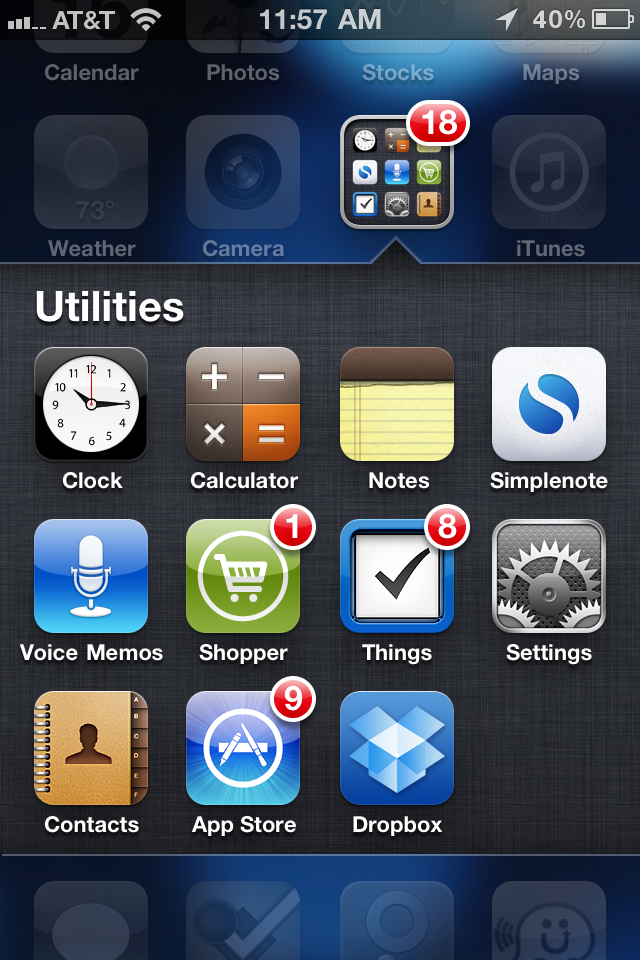
As you can see, I like to keep things organized in folders. I still have multiple pages of apps — nine at last count — but I want the apps that I use regularly on the first three pages. This means that folders are a necessity.

First up on page one is my Utilities folder. Most of the apps here are standard iPhone apps like the Clock (which I use as my alarm clock and a timer when cooking), the Calculator, Notes, Voice Memos, the App Store and Contacts. I put Settings in here as well, only because I don’t use it every day.

To this group I’ve added the following four indispensable iPhone utilities:

Simplenote

Simplenote is a terrific little free utility that is part Notes, part DropBox. You create an account and then you can use Simplenote from your iPhone, iPod Touch, iPad or computer. It’s essentially like the regular Notes app, with one significant difference — your notes are saved in The Cloud. This means that you can create, access and edit your notes from whatever Internet-connected device happens to be handy. I use this for lists and note-taking on my iPhone or iPad, then access them later from my desktop. On my desktop, I just use my browser, but there are a number of desktop clients for both Macs and PCs available.

Shopper

I started using Shopper to build my grocery list, but have since used it for trips to the home improvement store and pretty much anything else I would shop for. I like that I can simply and quickly add items to any of my multiple lists right when the idea strikes. As I go through the aisles at the market, I check off the items that I put in my basket.  Note that there is a free version and a commercial version. I’ve only used the free one, and it fits the bill better than anything else I’ve run across.

Things

One of the basic functions notably missing from the iPhone is task management. Things is a commercial app, and at $9.99 for the iPhone, it ain’t cheap. But it is elegant, intuitive, and works exactly like I need. It was worth the $9.99. There is also a $19.99 version optimized for the iPad, and I’ve since graduated to that. What I haven’t done (yet) is spring for the $49 Mac app, which would sync everything. For now, the iPad version fits the bill for me, but if you only have an iPhone, Things still rocks.

Dropbox

Last but not least is one my favorite utilities. I started using DropBox as brainlessly simple way to share files between PCs. Since then, I’ve added the DropBox app to my iPhone and iPad. How does it work? Essentially it creates a special folder on your device where the files you want to share are stored. I use it primarily for personal sharing between my own devices — multiple computers and OS, and multiple mobile devices. But I’ve also had occasion to use it with clients to share larger files like videos and images. You choose what you share and what you keep to yourself.

Dropbox has saved my butt many times, giving me easy access to all my essential working files whenever and wherever I need them. And it’s free, although you can pay for additional storage.

Of course there are other apps I use that might be considered utilities, but these are my personal favorites. Next week, I’ll look at my favorite photography apps.

Do you have a favorite utility that I’ve overlooked? Share in the comments below.